0345 466 2666 Mon - Fri: 9am - 5:30pm Sat - Sun: Email Only Calls are recorded for training and monitoring purposes | PayPal Express Checkout ConfigurationFollow three simple steps to configure PayPal Express CheckoutBluepark's ecommerce software packages support the popular PayPal Express Checkout payment processor for receiving payments online. Simply follow these three simple steps to begin using this solution.
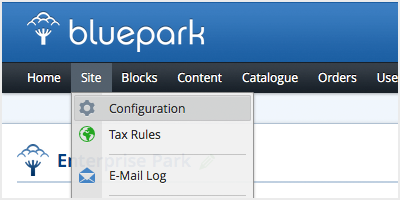
Access your secure Administration Console by entering your Username and Password. Once you have gained access, select Configuraton from the Site menu.
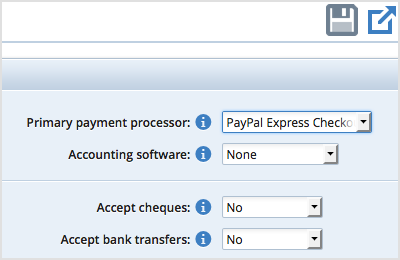
On the Payment tab, select PayPal Express Checkout from the Primary Payment Processor field. Once this is selected, click the Save button (the floppy disk icon) at the top-right of the page. The PayPal Express Checkout tab will then appear directly to the right of the Payment tab.
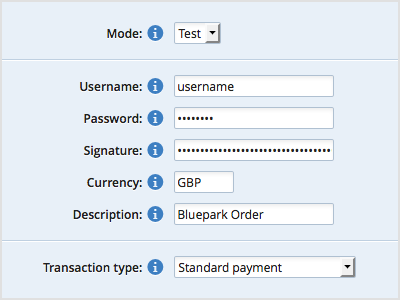
On the PayPal Express Checkout tab, select the required Mode that will be used for sending transactions to PayPal. Initially, you will need to use Test mode before PayPal approves your account to go Live. You will need to enter your Username, Password and Signature in the fields provided, which will enable PayPal to correctly identify your account. The Currency can be set to any ISO 4217 currency code, and defaults to GBP. The Description field may contain any text you would like to use to identify your transactions, and is only used for reference purposes. The Transaction Type defines the way in which you wish to process your customer's credit card details. A Standard payment means that funds will be taken immediately from your customer's account. A Delayed Capture payment is one which can be Captured at a later date, either for the full amount or with multiple captures. The complete list of options is as follows:
You should now be ready to begin processing payments using PayPal Express Checkout. Try Bluepark for FREE for 14 daysFull access to everything including our support team, no card details required |



|