Accept secure payments with confidenceChoose from the best payment gateways in the industry to guarantee your customers are taken care of. 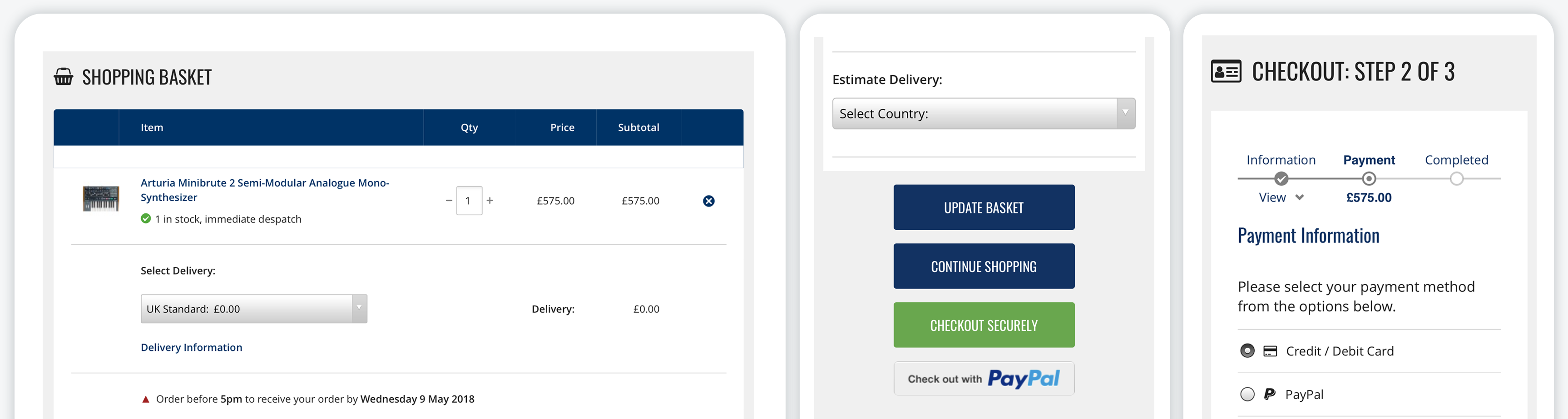 Integrated Payment Gateways    + Using PayPal, Braintree or Stripe  Ready to GoAll of our payment gateways come built-in, so there’s no complicated setup required. Just add in your account details and you’re good to go. Select the currencies you wish to display for global buyers and feel confident that no matter where they come from they will always be charged the correct VAT. No Transaction FeesUnlike many of our competitors, we do not charge transaction fees or impose penalties when using the Bluepark checkout system. Any transaction charges are agreed with your chosen merchant account provider and payment gateway, so you can negotiate the very best price for your business.  Receive thorough fraud checks on all paymentsAs a shop owner you need to be protected against fraudulent purchases, lost revenue and chargeback fees. With Bluepark, you can feel safe in the knowledge that every payment taken through one of our integrated payment gateways passes through a series of industry standard fraud checks, including 3D Secure, ensuring you are compliant with PSD2 and Strong Customer Authentication (SCA) regulations. Store payment details for faster checkoutVia our more advanced payment gateways, such as Braintree and Stripe, customers can securely store any number of payment methods, including PayPal, and manage them from their individual account area on your site. Offer subscriptions with recurring billingWhether you sell pet food, beauty products or vitamins, it’s easy to offer your customers a subscription service with recurring billing, offering monthly, quarterly or annual instalments, using our Braintree and Stripe payment gateways. Accept offline ordersOrders can be taken easily over the phone and processed through the website, so they can be fulfilled alongside your online orders. By using our MOTO (Mail Order Telephone Order) feature, you can be assured that each order is PCI compliant. Try Bluepark for FREE for 14 daysFull access to everything including our support team, no card details required |

 > More Details
 > More Details
 > More Details

|